
previous SONY NETWORK VIDEO RECEIVER Quick Setup Guide
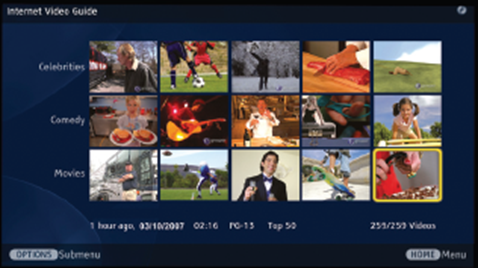
Internet Video Guide
Video Playback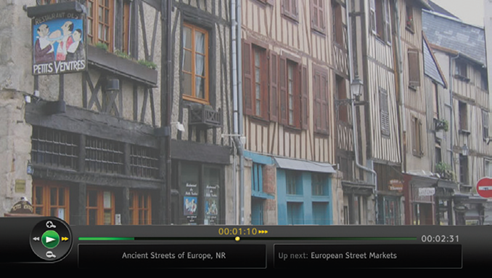
Follow the instructions below to save videos to My Video Links for quick and easy viewing.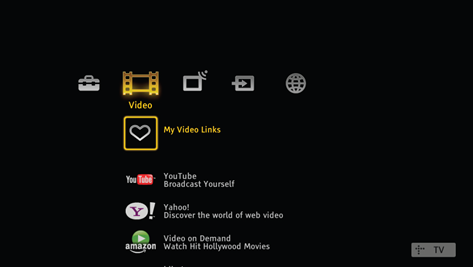
Save this Link
My Page
You must complete Region Setup before accessing this feature.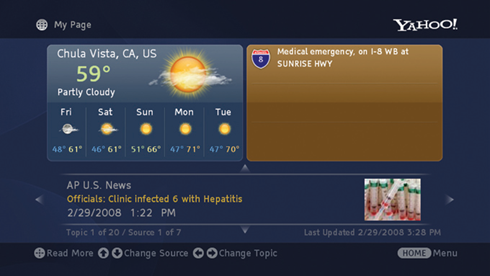
My Page gives you instant access to news, weather, and traffic information, all with the click of a button. To access My Page, press the shortcut button, DMeX, on your remote control.
To control the news articles:
Messages
From time to time, Sony and the service content providers will send important information to your Messages Inbox.
To open your Messages Inbox:
Helpful Hints and Troubleshooting
Internet Video Guide
BRAVIA Internet Video Link is a gateway that brings Internet videos straight to your BRAVIA TV. Follow these instructions to access each individual service content provider’s Internet Video Guide.
- Press HOME on the remote control to access the Video menu on the XMBTM (XrossMediaBar®).
- Press the
button to highlight the content provider of your choice.
- Press
to open the Internet Video Guide with videos provided by the content provider.


- Scroll between videos using the
buttons. To page up and down, press CH +/–.
- Highlight the video you want to play.
- Press
or
to begin playing the video.


Video Playback

- Press
or
to Pause the video during playback. Press
or
to Play.
- Press the RETURN button to stop the video and return to the Internet Video Guide.
- Press
to zoom in/out.
- Press OPTIONS to display other available options.
- For additional remote control operations while playing a video, see the “Using Your TV’s Remote Control with Your Receiver” section.
- Original quality of the picture may be lost when zooming in or out.


Follow the instructions below to save videos to My Video Links for quick and easy viewing.

Save this Link
- In the Internet Video Guide, highlight the video you wish to save.
- Press the OPTIONS button and select Save this Link.
- Press the HOME button and highlight the Video icon on the XMB™.
- Press the
button to select My Video Links.

My Page
You must complete Region Setup before accessing this feature.

My Page gives you instant access to news, weather, and traffic information, all with the click of a button. To access My Page, press the shortcut button, DMeX, on your remote control.
To control the news articles:
- Press the
buttons on your TV’s remote control to change source.
- Press the
buttons to change topics.
- Press
to view the full article in a new screen.


Messages
From time to time, Sony and the service content providers will send important information to your Messages Inbox.
To open your Messages Inbox:
- Press HOME on your TV’s remote control to access the Network menu on the XMBTM (XrossMediaBar®).
- Highlight the Messages icon and press
.
- Your Messages Inbox will open. To read a message, highlight it using the
buttons and press
.


Helpful Hints and Troubleshooting
- The receiver should be installed near an easily accessible power outlet.
- To turn off or reset the receiver, unplug it from the wall.
- Test the receiver’s connection before attaching it to your TV, especially if you are mounting the TV to a wall.
- If icons related to the receiver do not appear as shown in step 6 of Setting up the BRAVIA Internet Video Link, check your cable connections and Internet connection.
- Make sure that the USB and the HDMI cables are connected to the receiver and to the corresponding ports on the TV set.
- Verify your network connection by ensuring the Internet Video icon, shown to the right, appears on the XMBTM under the Settings menu.
- If the screen is black, press the HOME button to access the XMBTM and select an icon associated with the receiver. Do not try to access the receiver using the INPUT button on the remote control. The HDMI input on the TV will not activate the receiver.
- To view more videos while in the Internet Video Guide, press the OPTIONS button and select a new category from the list. Select Home Category to return to the main page.
- Some videos may not be available for viewing, depending on the TV’s Parental Lock settings.
- Videos saved to My Video Links may not be available if the service content provider has removed the video from their server.
- Your receiver will update software from time to time. See the Operating Instruction Manual (online) for more details.
- It is normal to see a black screen following an update or a reset of the receiver. To proceed, press the HOME button and select an icon from the XMBTM.
- Recommended connection speed: Standard Definition video 2.5 Mbps, High Definition video 10 Mbps

BRAVIA® Internet Video Link Accessories
Quick Setup Guide  | Attachment Guide  | Mounting Knobs  Plastic Fasteners  | USB Cable  |
Receiver (DMX-NV1) & Cable Cover  | AC Adapter with AC Power Cord  | Mounting Bracket  | HDMI Cable  |
Your BRAVIA LCD TV includes BRAVIA Internet Video Link. The Sony BRAVIA Internet Video Link brings on-demand entertainment and information from the Internet, including movies, news, traffic, and weather. High-speed Internet access is also required. Power off your TV before beginning the setup.
Step 1: Remove Cable Cover Remove the cable cover to expose the ports located on the bottom of the receiver.

Step 2: Connect Cables
Connect the cables in the order shown below.  Look for the serial number found on the bottom of the receiver to record in the Owner’s Record. |  |
Step 3: Connect to TV
 Connect the large end of the USB cable to the DMeX/SERVICE port on the TV.
 Connect the straight end of the HDMI cable to any HDMI port on the TV.
 Connect the large end of the USB cable to the DMeX/SERVICE port on the TV.
  Connect the straight end of the HDMI cable to any HDMI port on the TV.
Step 4: Connect to the Internet
Choose one of the following recommendations to connect the BRAVIA Internet Video Link receiver to the Internet with easy “plug and play.” Connect an Ethernet cable (not supplied) between the receiver and your Internet source.
 |  |  |
If you need to configure a fixed IP address or proxy server, check the Operating Instruction Manual for more information.
Step 5: Verify Connection
- Plug in the receiver and power on the TV.
- Once the receiver and TV are powered on, confirm the LED lights.


If the LEDs do not light up in green, confirm that all cables are securely connected.
Step 6: Confirm Connection
Follow these instructions to confirm.
- Press the DMeX button on your TV’s remote control to view the connection status.
- If “Feature available with DMeX module” appears on the screen, wait a few moments and try again.
- The first time the receiver is connected to the Internet, the software may require an update.
- Follow the instructions on-screen to complete Region Setup.
- Default country is the United States. Press the
button to select a different country.
- Default country is the United States. Press the
- When your region is setup, the receiver will attempt to connect to the Internet. Upon successful connection, you will see the screen below.
- Press the HOME button on your remote control to display the XMBTM. These menu icons associated with the receiver will appear when the service content providers are ready.
IMPORTANT: Do not press the INPUT button on the remote control to access the BRAVIA™ Internet Video Link. It is available on the XMBTM.


Slide the cable cover back into place.

For instructions on attaching to the TV, see the separate Attachment Guide.
Using Your TV’s Remote Control with Your Receiver
Use your Sony TV’s remote control with the DMeX button to operate the BRAVIA Internet Video Link receiver.
 |   |

